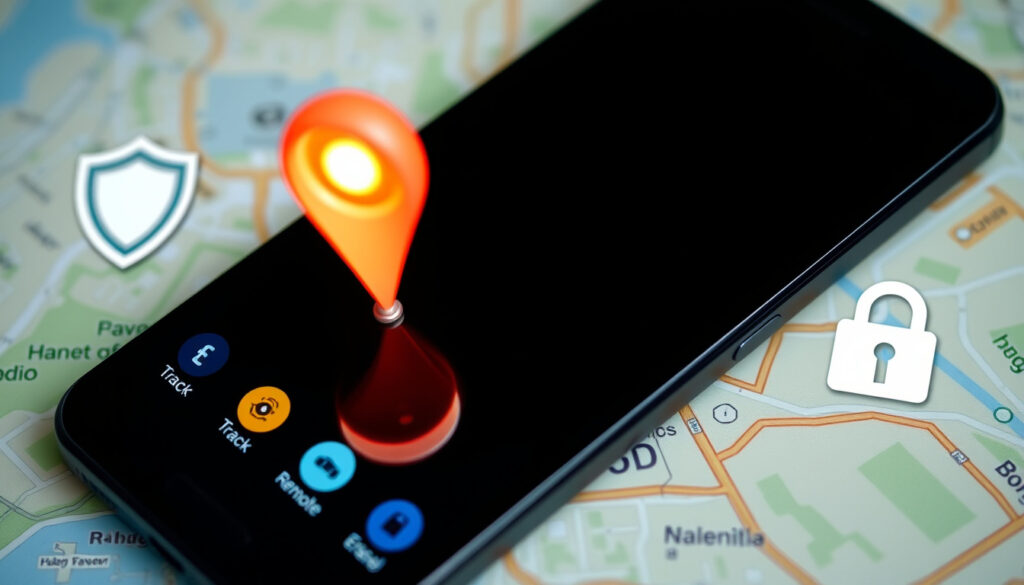
Find My Device Google: How to Locate, Secure, or Erase Your Android
Nothing kills a day like realizing your phone is gone. Whether it slipped behind a couch cushion or disappeared at a coffee shop, Google’s Find My Device tool turns panic into a plan.
Supported devices: Android 4.0+ ·
Price: Free ·
Tracked devices per account: Unlimited ·
Offline locating: Available (Android 8+) ·
Remote actions: Play sound, lock, erase ·
Location sharing: Via Google Maps
Quick snapshot
- Find My Device can locate, lock, erase, or ring any signed-in Android device (Google Find Hub)
- Service is free for all Android users (Google Play listing)
- Can be used from any browser or another Android device (Google Account Help)
- Exact range of offline locating — Google’s blog says it works but does not specify distance limits (Google Blog)
- Whether device must be powered on for offline locating to function (Google Blog)
- Precision of location in dense urban areas — Google states the map shows approximate location (Google Support Community)
- 2013: Launched as Android Device Manager (Google Blog)
- 2023: Google announced updated offline-capable experience (Google Blog)
- 2024: Browser portal rebranded to Find Hub (Google Find Hub landing page)
- Offline finding network may expand to more devices and accessories
- Integration with Google’s broader smart-home ecosystem expected
- Regional feature differences (like Hindi-locale remote lock without sign-in) may narrow over time
Five key facts tell the story of Find My Device:
| Item | Value |
|---|---|
| Service Name | Google Find My Device |
| Launch Year | 2013 (as Android Device Manager) |
| Owner | |
| Platform | Android |
| Free | Yes |
The pattern: a free, Google-operated tool that keeps evolving—but still has some haziness around offline capabilities.
How to locate a device with Google?
Google gives you two ways to start: a browser or the Find Hub app. Both point to the same engine.
Using Google Find Hub
- Open a browser on any device and go to android.com/find (Google Find Hub landing page)
- Sign in with the Google Account linked to the lost device
- The map shows the device’s approximate location — Google notes it may not be fully accurate (Google Support Community)
- Choose from three actions: Play Sound, Lock, or Erase
Setting up Find My Device
To use remote finding, all prerequisites must be met:
- The Android device must be turned on and signed into a Google Account
- Connected to mobile data or Wi‑Fi, visible on Google Play, Location turned on, and Find My Device activated (Google Account Help)
- If multiple user profiles exist, sign in with the account on the main profile
Locating from another device
- Use the Find Hub app on another Android phone or tablet, or a browser (Google Account Help)
- You can sign in as guest when helping someone else locate their device — a useful feature for friends or family
- On Android 9 or higher, you may be prompted for the lock-screen PIN; on Android 8 or lower, the Google password (Google Account Help)
The PIN prompt adds a privacy layer: even someone who knows your password can’t access Find Hub without physical access to your device’s lock screen. For Android 9+ users, this means a thief cannot locate your phone from a browser alone.
Google’s blog says the updated Android Find My Device experience can ring devices or show their location on a map, even when they are offline. — Google Blog
The implication: the setup requirements are strict, but they make the system trustworthy. If every checkbox is green, you’re ready for a crisis.
How do I locate someone else’s device?
This is where people get confused—Find My Device is built for your devices, not surveillance. To track someone else, you need their consent.
Requesting location sharing
- Find My Device only works for devices signed in to your own Google Account (Google Support Community)
- To share real-time location, the other person must use Google Maps location sharing — both parties need Google accounts (Google Account Help)
- Sharing can be set for a specific duration or until manually turned off
Using family sharing
- If you are part of a Google Family Group, you can locate family members’ devices through Find Hub (Android.com)
- Requires each family member to have their own Google Account and to consent to location sharing
Limitations and consent
- Google does not allow tracking someone’s device without their knowledge — all methods require explicit consent
- The Find Hub guest mode lets you help a friend locate their phone, but only with their credentials (Google Account Help)
Google warns that the map shows an approximate location and may not be fully accurate. — Google Support Community
The catch: this is not a tool for spying. It’s a tool for emergencies, and the consent requirement is both a legal necessity and a practical safeguard.
How to find someone’s location on Google Maps for free?
Google Maps location sharing is completely free and separate from Find My Device. Here’s how it works.
Sharing location via Google Maps
- Open Google Maps, tap your profile picture, select “Location sharing”
- Choose who to share with and for how long — options range from a few minutes to until you turn it off
- The recipient gets a notification with a link to see your real-time location (Google Account Help)
Viewing someone’s shared location
- If someone shares their location with you, it appears on your Google Maps as a moving dot
- No subscription or premium tier needed — it is part of Google’s free services
Privacy considerations
- You control exactly who sees your location and for how long
- Google’s privacy policy states that location data is encrypted in transit and used only to provide the service
- You can stop sharing at any time from the same Location sharing menu
Location sharing is powerful for coordinating meetups or keeping tabs on elderly relatives, but it means trusting Google with real-time position data. The company says it does not use shared location data for advertising, but the trade-off between convenience and privacy remains real for security-conscious users.
What this means: if you want to share your location voluntarily, it’s a trivial, free process. If you want to track someone who hasn’t agreed, you cannot—and that’s by design.
Can I locate my phone for free?
Short answer: yes. Find My Device costs exactly $0, no tricks.
Cost of Find My Device
- The service is free for all Android users — no subscription required (Google Play listing)
- Works over the internet via your Google Account
- No premium tier exists; all features (locate, ring, lock, erase) are included
Free features vs premium
- Offline locating is included on Android 8+ devices (Google Blog)
- No paid upgrade adds anything — a rarity in modern tech
Alternative free methods
- Google Maps location sharing (also free)
- Third-party apps like Life360 or Prey offer additional features but cost for premium tiers
- Carrier-based tracking services (like AT&T FamilyMap) often charge monthly fees
The pattern: Google uses Find My Device as a loss leader to keep users in its ecosystem. For the consumer, that means a robust feature set at zero cost—a rare win.
How to find, secure, or erase a lost Android device?
This is the action section. When your phone is gone, these steps are your playbook.
Using Find Hub to locate
- Go to android.com/find from any browser — even a friend’s phone works in guest mode (Google Account Help)
- Sign in to the Google Account on the lost device
- The device shows on a map with approximate location — Google warns that accuracy varies (Google Support Community)
- Select “Play Sound” — the device rings at full volume for 5 minutes even if set to silent
Locking your device remotely
- Choose “Secure Device” to lock with a new password
- You can display a message and phone number on the lock screen — good for honest finders (Google Support Community)
- This action also signs the device out of Google services, protecting accounts
Erasing data as last resort
- “Erase Device” wipes all data permanently — cannot be reversed (Google Find Hub)
- Use this only if you are certain the device cannot be recovered (e.g., stolen in a city with no police recovery)
- After erasure, Find My Device will no longer work on that phone — it becomes a blank slate
Erase is irreversible. An Android user in New York whose phone was stolen reported that after erase, they could never recover the photos that weren’t backed up. Always backup nightly before assuming a loss is permanent.
The trade-off: Locking is reversible if you recover the device. Erase protects your data but destroys the trail. Make that call carefully.
Clarity section
Confirmed facts
- Find My Device can locate, lock, or erase any Android device signed into a Google Account (Google Find Hub)
- Service is entirely free with no subscription required (Google Play listing)
- Works from any browser or the Find Hub app (Google Account Help)
- Google Maps location sharing is a separate, free feature for voluntary sharing (Google Account Help)
- Offline locating is available on Android 8+ devices (Google Blog)
What’s unclear
- Exact distance limits of offline locating — Google’s blog says it works but does not specify range
- Whether the device must be powered on for offline finding to succeed
- Accuracy of location in dense urban areas — Google states “approximate” with no precision metric
- Regional variations in features (e.g., Hindi-locale page suggests remote lock without sign-in may exist in some markets)
- Whether offline finding functions when the device is completely powered off (Google’s blog does not clarify)
Related reading: Google Find My Device · Google Find Hub
support.google.com, google.com, youtube.com, youtube.com, cnet.com
For a detailed walkthrough of the service, you can refer to this comprehensive guide to Find My Device that covers locating, securing, and erasing lost devices.
Frequently asked questions
What devices support Find My Device?
Any Android device running Android 4.0 or later that is signed into a Google Account and has Find My Device enabled. This includes phones, tablets, and some compatible accessories. Google’s support page lists the requirements: device must be turned on, connected to mobile data or Wi‑Fi, visible on Google Play, and have Location turned on (Google Support Community).
Can I track a phone that is turned off?
Not in real-time. If the device is off, Find My Device shows the last known location before it powered down, if available (Google Support Community). Google’s offline finding feature, announced in 2023, can also show location from nearby devices even when yours is offline, but the range is undefined—estimated at a few hundred feet based on Bluetooth proximity (Google Blog).
How accurate is Find My Device location?
Google states the map shows an approximate location and may not be fully accurate (Google Support Community). Accuracy depends on GPS signal strength, Wi‑Fi availability, and whether the device is indoors or in a dense urban area. The precision is typically within 20–50 feet outdoors but can degrade significantly indoors.
Does Find My Device work with iPhone?
No. Find My Device is built for Android only. iPhone users have Apple’s Find My app, which is equivalent but incompatible between ecosystems. There is no cross-platform locating tool from Google for iOS devices.
How to add a device to Find My Device?
Devices are automatically added when you sign into a Google Account on an Android phone or tablet. To check: open Settings → Google → All Services → Find My Device and toggle it on. If the device does not appear, ensure it meets all requirements and is running Android 4.0+. The Find Hub app on the device you are using can also be installed from Google Play if missing (Google Account Help).
Can I use Find My Device without internet?
The device itself needs internet to be located—it must be connected to mobile data or Wi‑Fi. However, the new offline finding feature (Android 8+) uses Bluetooth and nearby Android devices to relay location even when your phone is offline. The locating device (the one you are using to find it) needs internet to access Find Hub (Google Blog).
Is there a limit to how many devices I can track?
Google says the system supports unlimited devices per Google Account. Each device that meets the requirements and is signed into the same account will appear in Find Hub. However, location sharing via Google Maps is limited to the people you explicitly add.
How to remove a device from my Google account?
Go to your Google Account settings → Security → Manage devices. Find the device and select “Sign out” or “Remove.” This will also remove it from Find My Device. Note that if you still have the device, you should factory reset it separately to wipe local data (Google Account Help).
For Android users, the choice is clear: enable Find My Device today and memorize android.com/find. For everyone else, the lesson is simpler—don’t wait until your phone is gone to learn the tools that can bring it back.
More related posts
 Louise Penny Books in Order: Inspector Gamache Series
 Extremely Thin Hair Low Maintenance Bob Hairstyles for Fine Hair – Styles for Effortless Volume
 Internet Providers Near Me: Cheapest Plans and Reliable Service
 Zero-Day Vulnerability Today: Recent Threats & Defense
 Pottery Painting Near Me: Co t, Location & Arthriti Benefit
 Liquor Store Near Me Open: Dublin Hours, Delivery & 2-2-2 Rule
 Highest 2 Lowest Showtimes: Where to Watch, AMC Refusal